Account
Profile settings, password, theme, and personal access tokens.
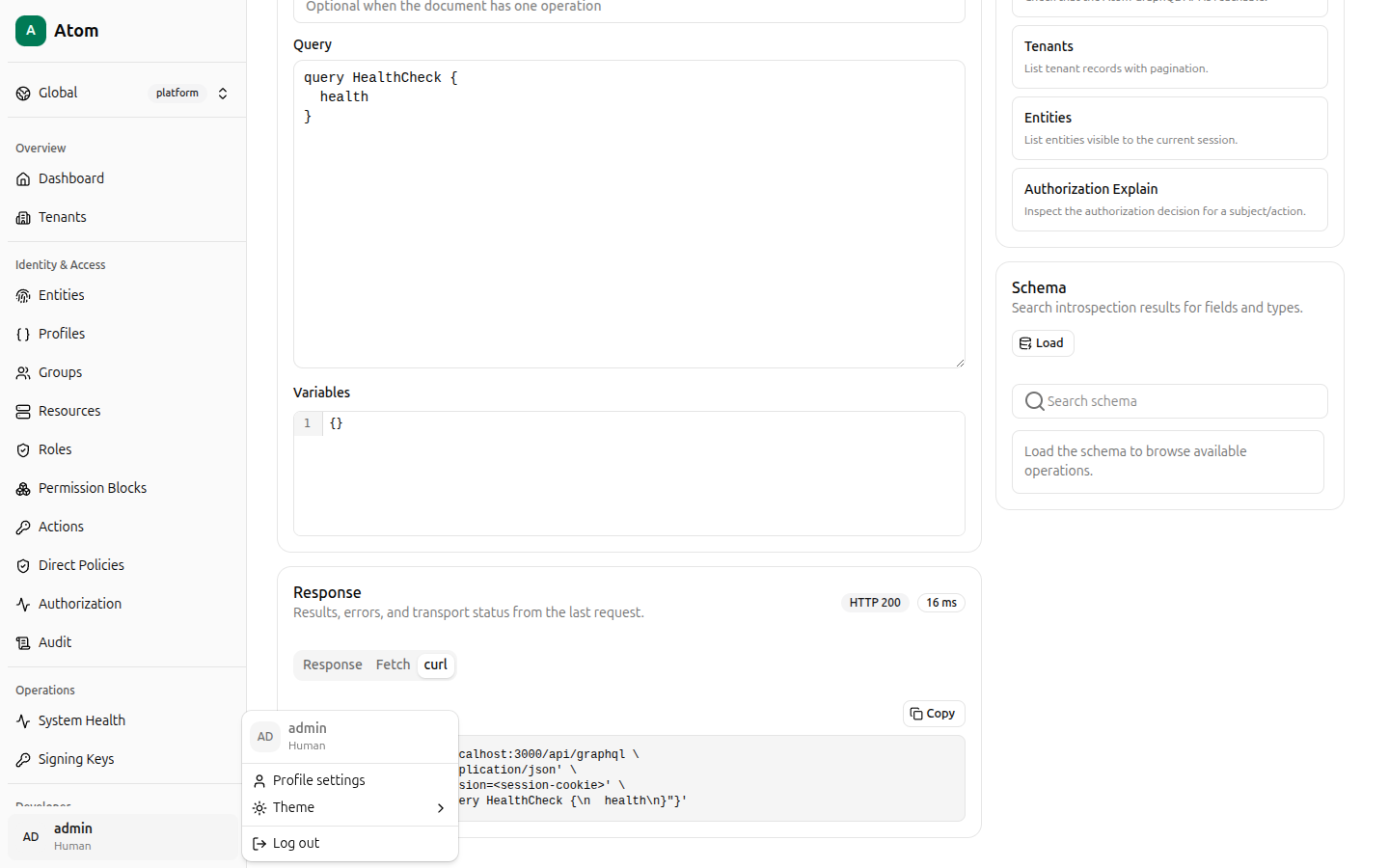
Your account name and kind sit at the bottom of the sidebar. Click it to open the account menu: Profile settings, Theme, and Log out.
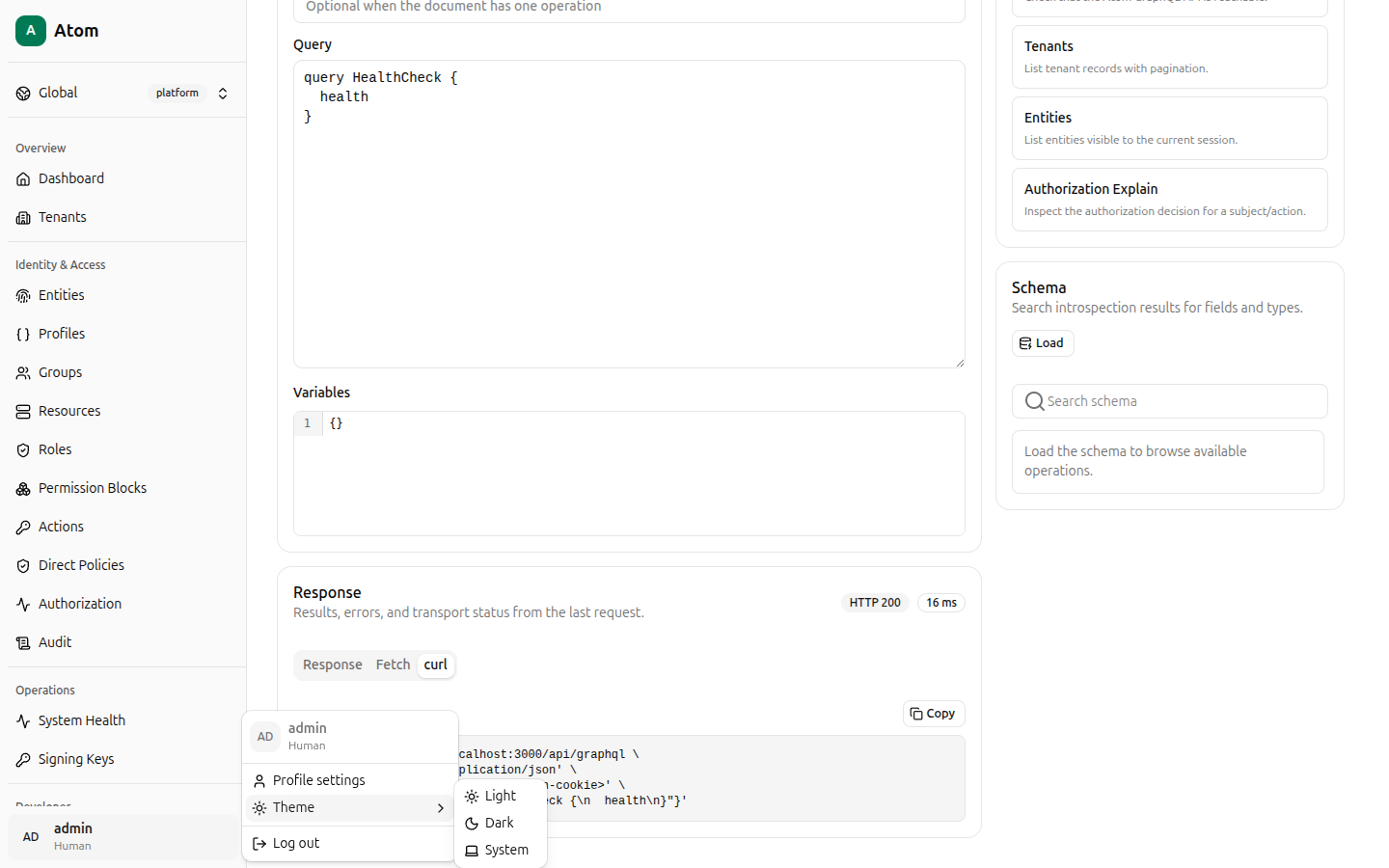
Theme
Theme expands into Light, Dark, and System. This is a personal, per-browser preference — it does not affect what other users see.
Profile settings
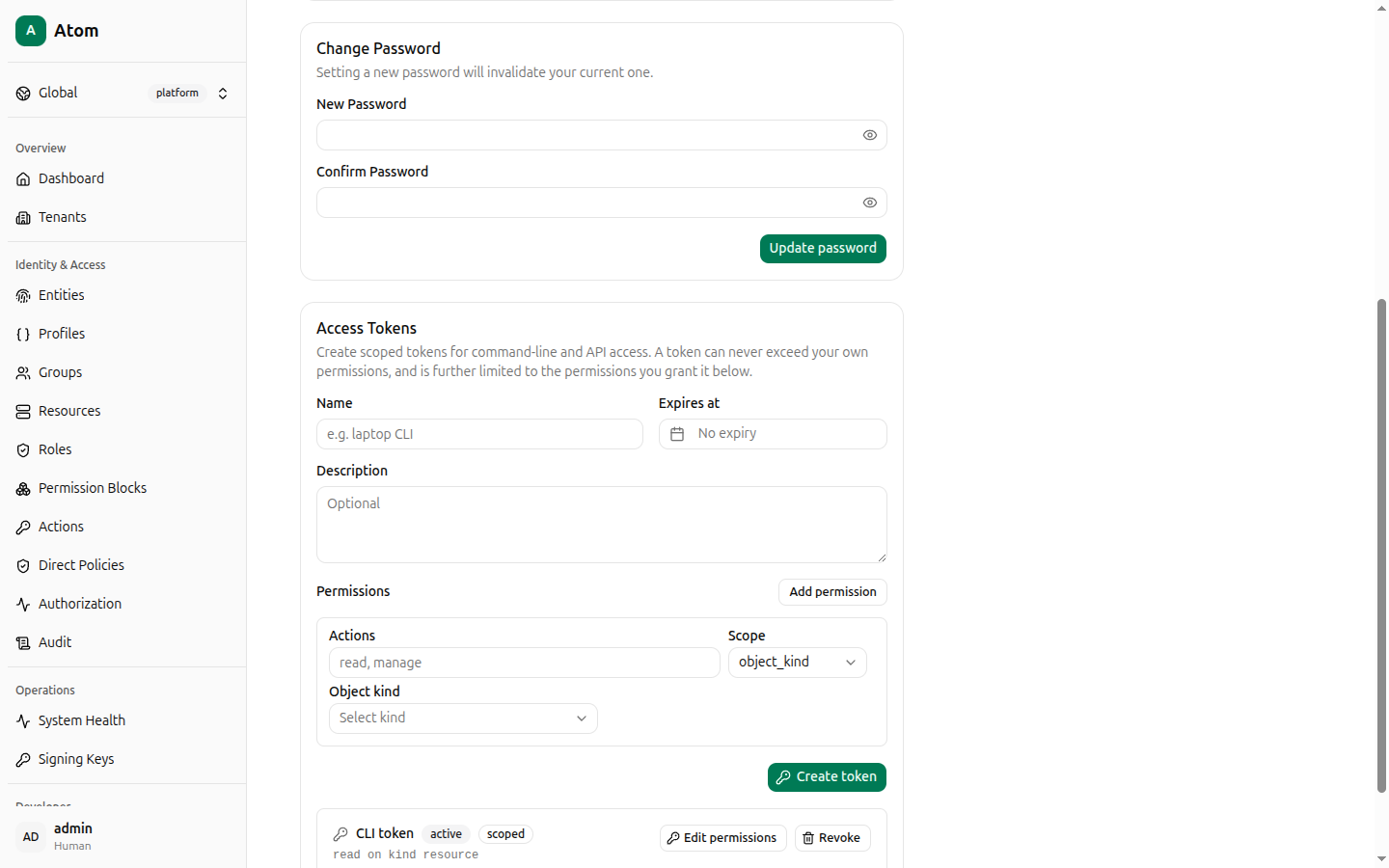
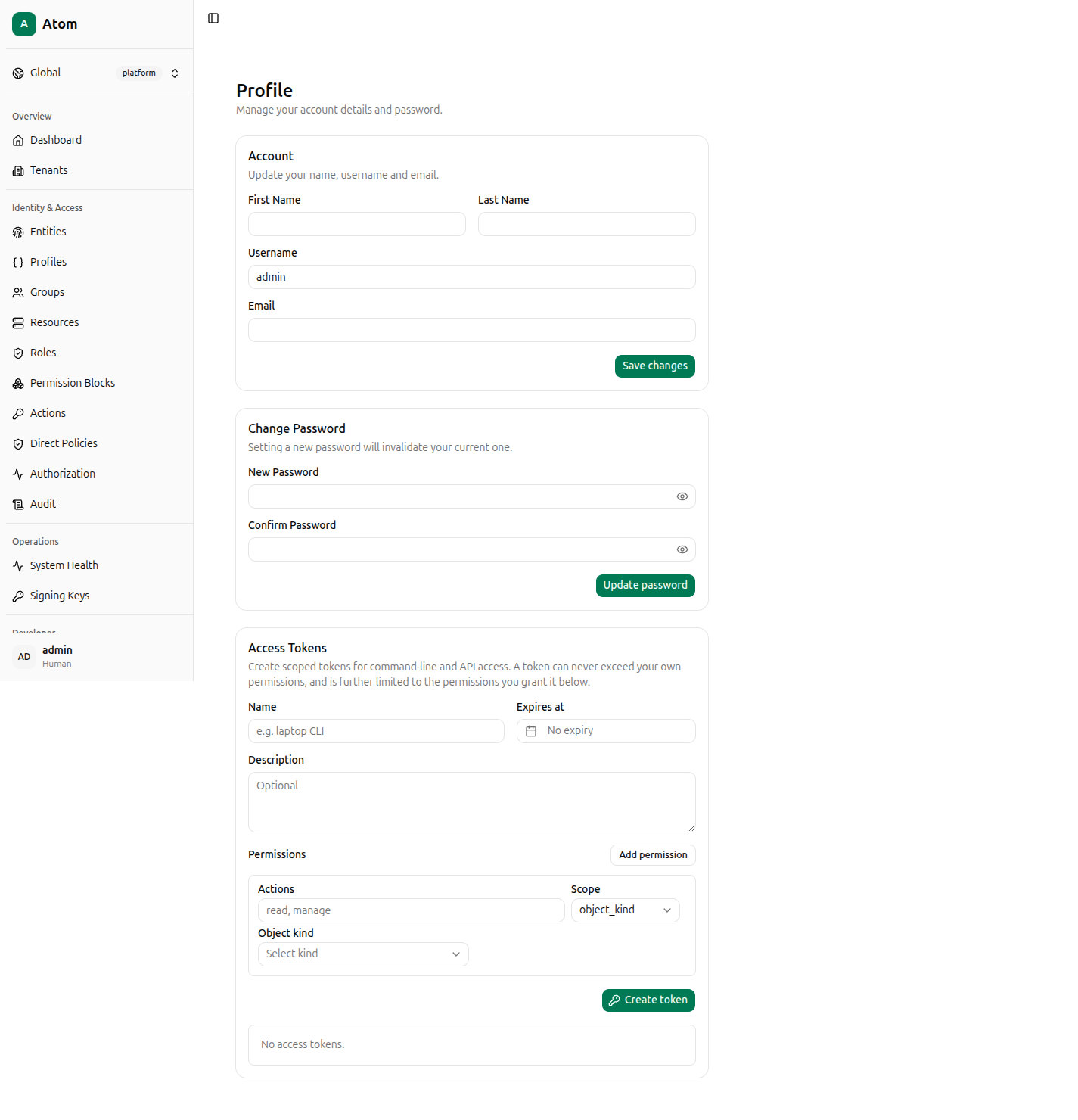
Click Profile settings (or navigate to /profile) for three sections: Account,
Change Password, and Access Tokens.
Account
Update First Name, Last Name, Username, and Email, then click Save changes.
Change Password
Set New Password and Confirm Password, then click Update password. Atom warns that setting a new password invalidates your current one — you will need to sign in again with the new password.
Access Tokens
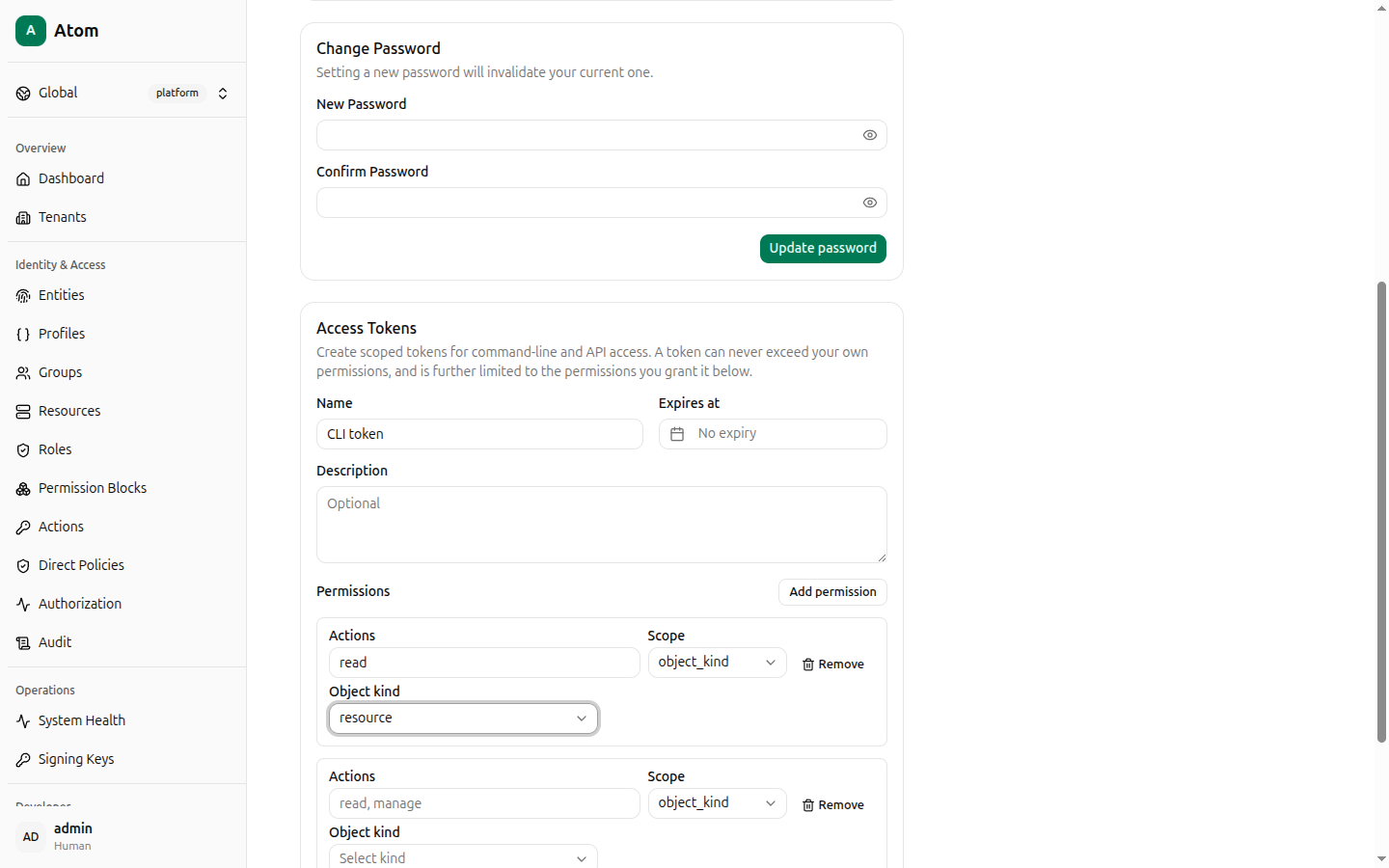
Create scoped personal access tokens for command-line and API access. A token can never exceed your own permissions, and is further limited to whatever permissions you explicitly grant it here — it is not a copy of your full session.
Fields:
- Name (required).
- Expires at — defaults to No expiry; click to set a specific date/time.
- Description — optional.
- Permissions — click Add permission to add a scoped grant row, each with:
- Actions — a comma-separated or free-text list of allowed action names (for example
read). - Scope — currently
object_kind. - Object kind —
entity,resource,group,tenant, orcredential.
- Actions — a comma-separated or free-text list of allowed action names (for example
Click Add permission to add more than one grant row, or leave the token with a single scoped permission for a narrowly-purposed CLI script.
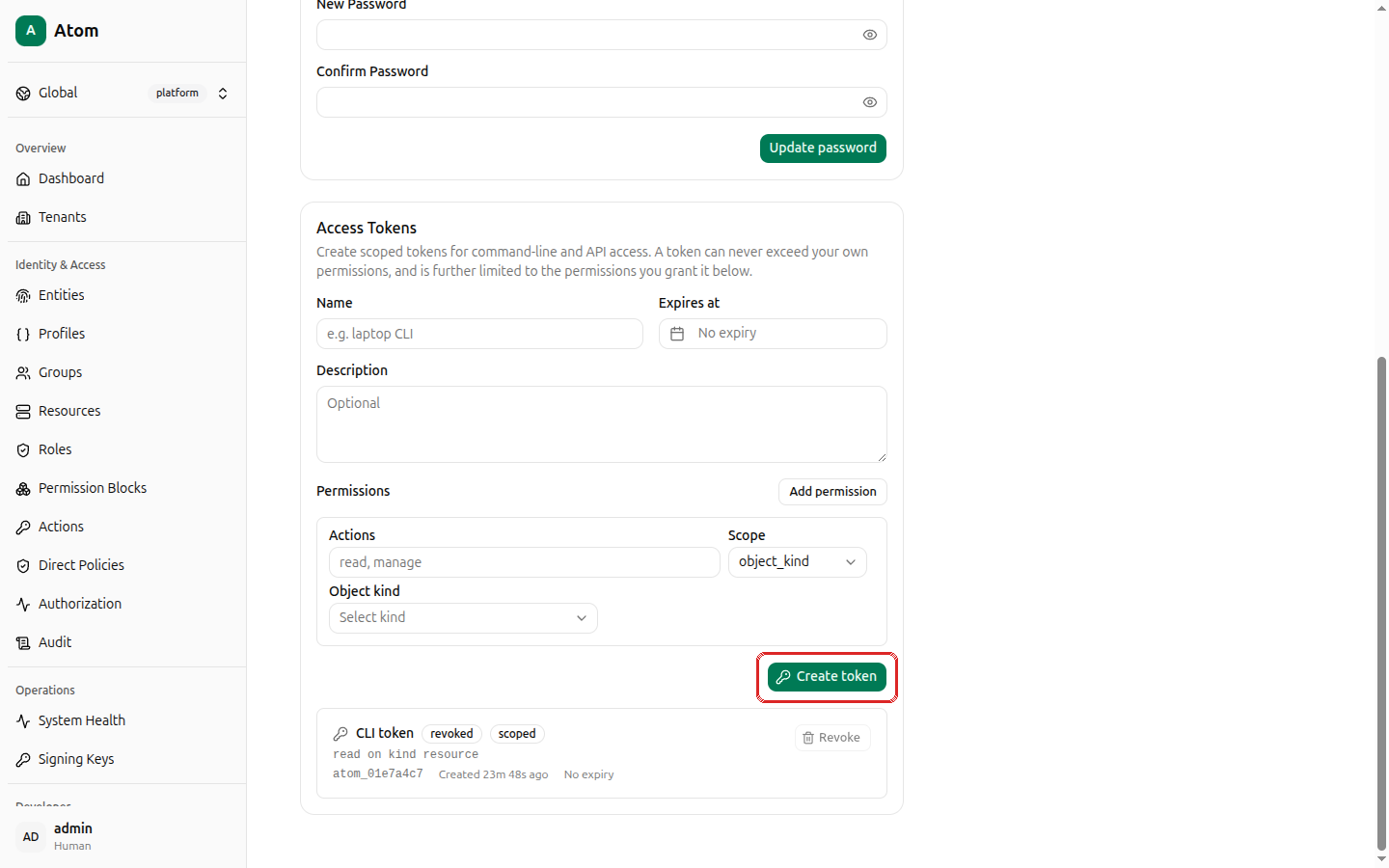
Click Create token in the bottom-right corner of the form.
The full token secret is shown exactly once, immediately after creation, in a copy it
now banner. Atom never displays the full value again — only a short prefix (for example
atom_01e7a4c7) is shown afterward in the tokens list. Store it in a secrets manager or
password manager immediately; if you lose it, revoke it and create a new one.
Existing tokens are listed below the form with their Name, status (active or
revoked), scope summary (for example "read on kind resource"), prefix, creation date, and
expiry. Each active token has Edit permissions and Revoke buttons; a revoked token
keeps its history visible but its Revoke button becomes disabled.